

Triggers in Automation Journey – Wabo.ai
Triggers are specific events or conditions that kickstart an automation flow. They help ensure that your users receive timely messages and responses based on what they do or how their data changes inside the system.
💡 Why Triggers Matter?
Triggers in Automation Journey – Wabo.ai
Imagine sending a welcome message the moment someone signs up — that’s a trigger in action! It automates your response, saving time while keeping your communication fast and relevant.
Important Note
Only ONE trigger can be used per automation.
If you want to change the trigger, you must remove the existing one first.
🔁 Types of Triggers in Wabo’s Automation Module
1. Contact Created
When it fires: A new contact is added to your database.
Example: Send a welcome message or email when someone signs up for a webinar.
2. Contact Updated
When it fires: Any detail of an existing contact is modified.
Example: If someone updates their job title, send them targeted content based on their new role.
3. Added to List
When it fires: A contact is added to a specific marketing list.
Example: Add someone to a “Product Demo List” → Automatically send them demo booking instructions.
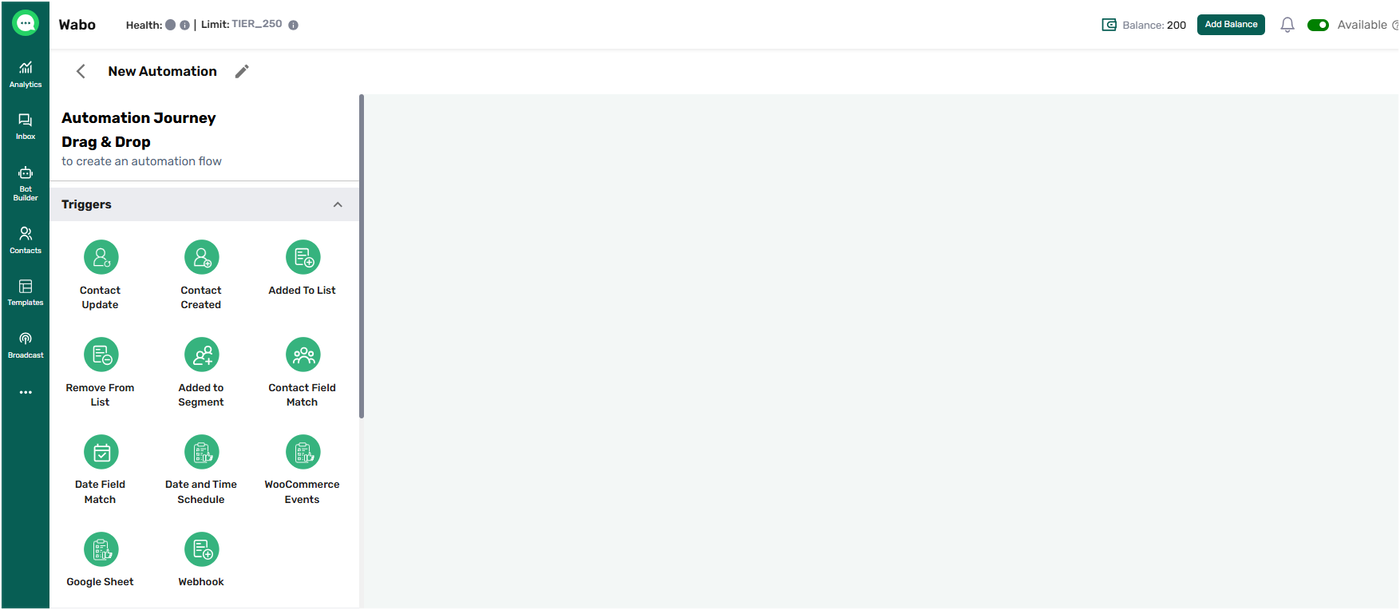
4. Removed from List
When it fires: A contact is removed from a list.
Example: When a user unsubscribes from a newsletter list, send a feedback form.
5. Contact Field Match
When it fires: A contact’s field value matches certain criteria.
Example: If a contact's “Lead Score” reaches 90, assign the contact to a sales agent.
6. Added to Segment
When it fires: A contact is grouped into a specific dynamic segment.
Example: If someone is added to the “High-Value Customers” segment, trigger a loyalty rewards flow.
7. WooCommerce Events
These triggers are based on customer actions in your online store.
📌 When it fires:
When specific e-commerce events occur such as:
Abandoned Cart
Added to Cart
Checkout Started
Order Placed
Order Fulfilled
Order Cancelled
Order Refunded
Product Viewed
Ordered Product
🎯 Examples:
🛍Abandoned Cart: Cart Value > 2000 AND Product Category = Electronics → send discount reminder
Order Placed: Ordered Product = iPhone → send accessories recommendation
Added to Cart: Product Category = Shoes AND Product Price > 3000 → send product benefits
👉 This is extremely powerful for recovering revenue and improving conversions
8. Google Sheet Trigger
📌 When it fires:
When a new row is added or an existing row is updated in a connected Google Sheet
✅ Setup:
Connect your Google account
Select Google Sheet
Map Contact Number field
🎯 Use Case:
Automatically send WhatsApp messages when new leads are added via ads, events, or CRM exports
9. Webhook
📌 When it fires:
When data is received from an external system via webhook
✅ Setup:
Configure webhook URL
Connect external platform (forms, apps, CRM, etc.)
🎯 Use Case:
Trigger automation when:
A user submits a website form
Lead comes from Meta/Facebook Ads
External system pushes data
✅ Summary
Triggers are your automation’s starting point — they define when the journey begins based on real-time contact behavior or data changes.
Use them to automate responses, streamline engagement, and provide a personalized experience every time.
🧠 Pro Tips
Combine Triggers + Conditions + Actions for intelligent workflows
Use Field Match & Date Field Match for personalization
Leverage Google Sheets & Webhooks for real-time automation
Always test your journey before publishing
🔨 Ready to Build?
Go to Automation Module
Click Create Automation
Select your Trigger
Add Conditions & Actions
Publish 🚀