

Inactivity Timeouts
Inactivity timeouts allow you to manage how long a chat remains unattended or open without activity. You can set specific time limits for both unattended chats (when agents don't respond) and closed chats (when customers don't reply) & whenever the chat is closed you can send them an automated chat closed message as well. This helps track agent productivity and manage chat flow efficiently.
Steps to Set Inactivity Timeouts:
Go to Your Profile
On the top-right corner of the screen, click on your Profile icon.
Access Settings
From the dropdown menu, select Settings.
Click on Chat Settings
In the Settings menu, click on Chat Settings to access options related to chat behavior.
Select Inactivity Timeouts
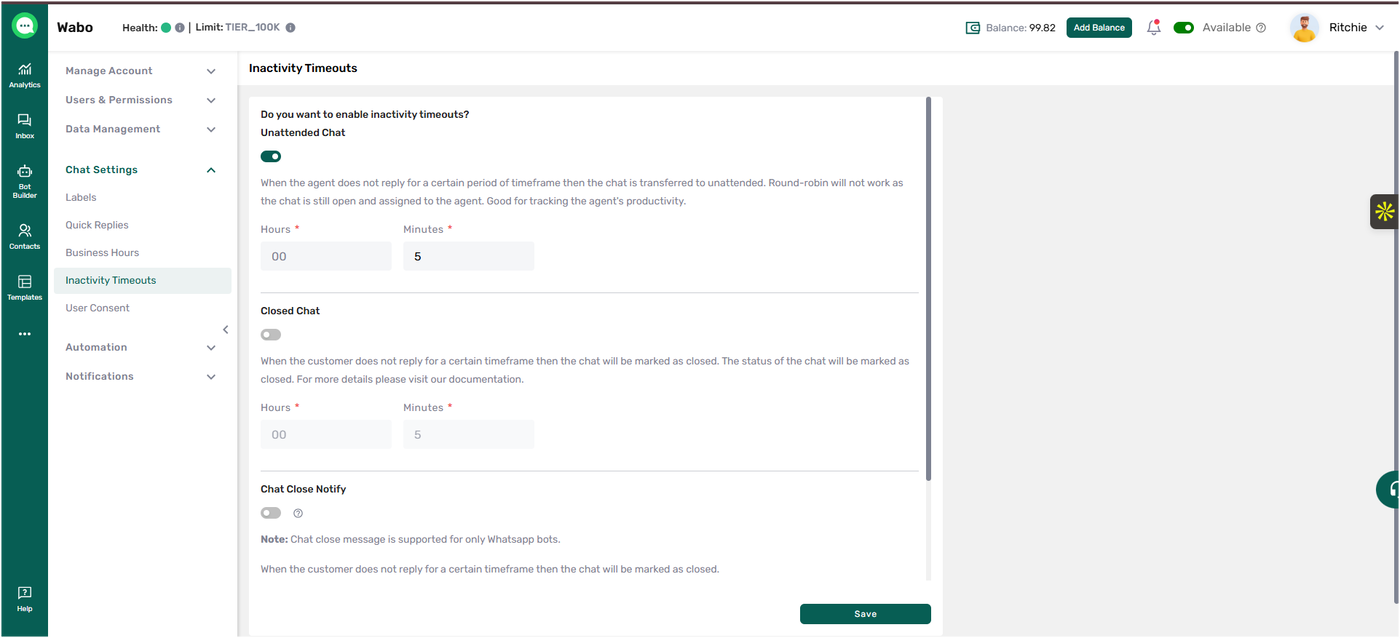
Under Chat Settings, find and click on the Inactivity Timeouts option. This will open a page where you can set inactivity rules.
Set Timeout for Unattended Chats
Turn on the Radio Button for Unattended Chats.
When enabled, if an agent does not respond to a chat within a specified timeframe, the chat will be moved to the Unattended section.
Round-robin chat assignment will not work for these chats, as they are still open and assigned to an agent.
This setting helps in tracking agent productivity.
Set the timer by choosing the hours and minutes after which the chat will be marked as unattended.
Set Timeout for Closed Chats
Turn on the Toggle for Closed Chats.
When enabled, if a customer does not reply within a specified timeframe, the chat will automatically be marked as Closed.
The status of the chat will be updated to Closed.
Set the timer by choosing the hours and minutes after which the chat will be marked as closed.
Enable Chat Close Notify
Turn on the Chat Close Notify toggle.
This option sends an automated message to the customer when the customer doesn’t reply for a certain timeframe (closed chat time-outs mentioned above) or when chat is marked as closed due to inactivity.
Note: Chat Close Notify is supported only for WhatsApp bots.
This helps inform users clearly that the conversation has ended due to inactivity.
Save Your Settings
After configuring both timeouts, click on the Save button to apply the changes.
Setting inactivity timeouts helps ensure that no conversation is left unmonitored, and chats are closed efficiently when they become inactive. For more detailed information, you can refer to Wabo’s documentation.